AI music video clip generator

Script to Video Generator

Type a scene prompt or drop in a reference image and get a cinematic music video clip in under two minutes — powered by Veo 3.1 Fast and Seedance Pro Fast.

ReferenceOptional
Upload reference image
Prompt0/1500

Press Ctrl/Cmd + Enter to generate. First generation may take 30-90s.

  • Text-to-video with Veo 3.1 Fast
  • Image-to-video with Seedance Pro Fast
  • Up to 12-second cinematic clips
  • 16:9, 9:16, and 1:1 aspect ratios
  • 30–90 second generation time
  • Tuned for music video B-roll

What Is a Script to Video Generator?

A focused AI tool that turns a single scene prompt or reference image into a finished music video clip.

A script to video generator is a focused AI video tool that turns a single scene prompt into a finished, downloadable music video clip. You type a short description — a mood, a setting, a character motion — pick a model and aspect ratio, and the tool returns a cinematic clip in 30 to 90 seconds. No storyboard setup, no per-scene clicking, no project files to manage. It is built for the moment when you already know what one shot should look like and you just need to get it rendered.

This script to video generator pairs two of the best AI video models available today. Veo 3.1 Fast handles text-to-video: describe the scene in natural language and it returns a cinematic frame with motion, lighting, and depth. Seedance Pro Fast handles image-to-video: upload a still frame — a character mockup, a Nano Banana render, a frame from a previous clip — and it brings that exact frame to life with realistic motion. Both models output standard MP4 files ready for any editor, social platform, or live show backdrop.

Inside the GetLyricVideo workflow, the script to video generator sits right after the Music Video Script Generator. The script generator produces the timed blueprint — scene descriptions, image prompts, video prompts — for an entire song. This tool is what you use when you want to actually produce one of those scenes as a finished clip. Paste a single scene from your script JSON, or skip the script entirely and type a fresh prompt. Each run produces one clip, not a full video, so you stay in control of pacing, selection, and final edit.

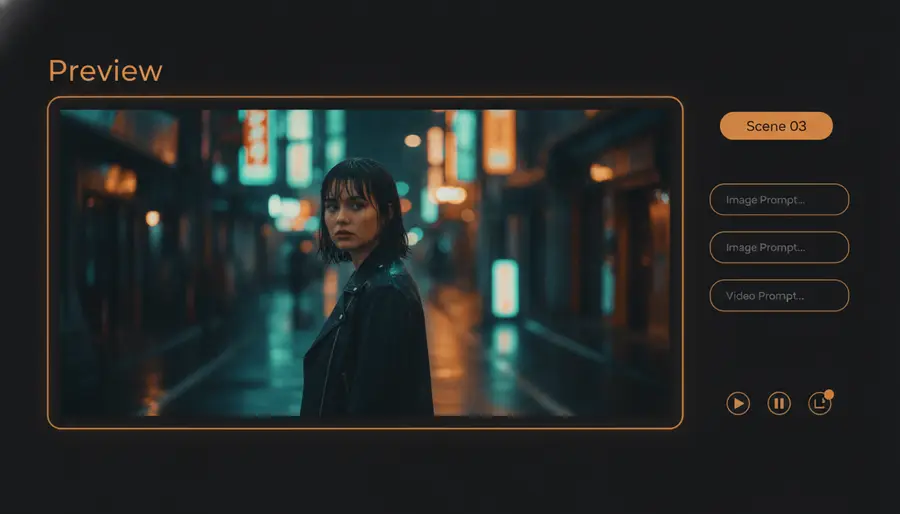
A generated music video clip preview with prompt, reference image, and rendered MP4 frame
A single generated clip preview: the prompt and reference image on the left, the rendered MP4 frame on the right, ready to drop into your lyric video timeline.

Anatomy of a Generated Clip

Six inputs decide what your clip looks like. Get them right and the model has everything it needs.

Every run of a script to video generator takes six inputs. Each one controls a specific dimension of the output — the subject, the framing, the motion, the format. Here is what each field does and what to write when you are not sure.

1

Prompt

The natural-language description of the scene. Covers subject, setting, lighting, camera move, and mood. This is the single most important input — the model reads it word by word.

Example: Cinematic rain-soaked Tokyo street at night, a young woman in a leather jacket turns back over her shoulder, neon reflections in puddles, slow handheld push-in, amber and teal color grade.

2

Reference Image

Optional still frame used as the visual anchor for image-to-video mode. Seedance Pro Fast uses this frame as the first shot and generates motion on top of it. Ignored by Veo 3.1 Fast.

Example: A 9:16 portrait of your protagonist generated in the script generator, or a still from a previous clip you want to extend.

3

Model

Decides the generation pipeline. Veo 3.1 Fast for pure text-to-video. Seedance Pro Fast for image-to-video when you already have a frame. The choice also affects cost per clip.

Example: Veo 3.1 Fast for a brand-new establishing shot. Seedance Pro Fast when you have a character portrait and want to animate it.

4

Aspect Ratio

The frame shape of the output. 16:9 for YouTube and widescreen, 9:16 for TikTok, Reels, and Shorts, 1:1 for square social posts. Match this to where the clip will actually be seen.

Example: 9:16 vertical for an Instagram Reel teaser. 16:9 widescreen for a YouTube music video B-roll.

5

Duration

How long the final clip runs. Most generations land between 5 and 12 seconds. Shorter clips render faster and cost fewer credits; longer clips give you more room for camera moves and story beats.

Example: 8 seconds for a single lyric line B-roll. 12 seconds for an intro establishing shot with multiple beats.

6

Output

The deliverable: a standard MP4 file at the chosen aspect ratio and duration. Download it, drop it into any editor, or queue several clips back-to-back for a full music video.

Example: MP4, 1080p, 16:9, 8 seconds. Ready for DaVinci Resolve, Premiere, CapCut, or direct upload.

How It Works

Four steps from idea to downloadable clip.

Step 1

Describe your scene

Type a short prompt describing the music video moment you want — a mood, a setting, a character motion. The script to video generator reads natural language fine, so write it the way you would describe it to a cinematographer.

Prompt: Cinematic rain-soaked street at night, a young woman in a leather jacket turns back over her shoulder, slow handheld push-in, amber and teal color grade, 9:16.

Tip: Lead with the subject and the camera move. Models handle 'close-up, slow push-in' better than 'wide establishing panorama'.

Step 2

Pick a model and format

Choose Veo 3.1 Fast for pure text-to-video, or upload a reference image and switch to Seedance Pro Fast for image-to-video. Select aspect ratio (16:9, 9:16, or 1:1) and duration (5–12 seconds).

Veo 3.1 Fast for a brand-new scene from scratch. Seedance Pro Fast when you have a still frame you want to bring to life.

Tip: Match the aspect ratio to where the clip will live. 9:16 for TikTok and Reels, 16:9 for YouTube. Reusing the same prompt across ratios is fine — the model re-runs cleanly.

Step 3

Generate and review

Click Generate. Most clips finish in 30 to 90 seconds depending on model and duration. Watch the live status on the result page, then preview the MP4 right there before deciding to keep or retry.

Result page shows the rendered clip, the prompt used, and a Download button. No black-box queue, no waiting for an email.

Tip: If the clip is close but not perfect, retry with a sharper prompt instead of starting over. Small wording changes (add 'shallow depth of field', remove 'wide shot') usually land it on the second try.

Step 4

Download and use it anywhere

The output is a standard MP4. Drop it into your lyric video timeline, post it to TikTok or Reels as a teaser, queue several clips for a live show backdrop, or pair it with audio in our merge tool for a full music video.

Download → drop into DaVinci Resolve → line up with audio → export final music video. Or upload directly to social without editing.

Tip: Save the prompts that worked. Pasting a proven prompt with a small tweak is the fastest way to generate a consistent set of clips for the same project.

Two Generation Modes, Two Different Starting Points

Pick text-to-video when you have a lyric idea. Pick image-to-video when you already have a frame.

Veo 3.1 Fast preview

Veo 3.1 Fast

Best for: cinematic scenes from a text prompt

Text-to-video, no reference image needed

Veo 3.1 Fast is the script to video generator's text-to-video mode. Describe the scene in natural language — subject, setting, lighting, camera move — and the model returns a cinematic clip with no input frame required. This is the right choice when you are starting from a lyric line, a mood idea, or a prompt from the script generator and you want to see what the model invents.

Output: 8-second MP4 clip in 16:9 widescreen or 9:16 vertical — 28 credits per generation

Seedance Pro Fast preview

Seedance Pro Fast

Best for: bringing a still frame to life with motion

Image-to-video, requires a reference image

Seedance Pro Fast is the image-to-video mode of the script to video generator. Upload a still frame — a Nano Banana character render, a frame from a previous clip, a stock photo — and the model generates realistic motion on top of that exact image. Use this when you already have a visual anchor and you want to preserve it, or when text-to-video keeps producing the wrong protagonist.

Output: 5–12 second MP4 clip in 16:9, 9:16, or 1:1 — 14 to 42 credits depending on duration

See What Your Clip Looks Like

Below is an example of what the script to video generator returns for a single scene prompt.

Generated cinematic music video clip preview
Clip ready

Scene 03

Rain-lit chorus close-up

I keep running back to the sound of your name

Generated clip

A finished MP4-style result preview with the same prompt, model, aspect ratio, and duration surfaced on the result page.

Model

Veo 3.1 Fast

Format

16:9

Duration

8s

Cost

28 credits

Result pageMP4 ready

Preview the clip, download it, or retry once if the motion does not match the scene.

Image prompt

Cinematic rain-soaked street, neon signs, wet pavement reflections, emotional chorus close-up, teal and amber music video lighting.

Video prompt

Slow handheld push-in as the performer turns toward camera; subtle hair movement, rippling reflections, timed to the chorus beat.

Your actual output from the script to video generator is a downloadable MP4 clip. The result page also shows the prompt, model, aspect ratio, and duration used — so you can reproduce a good generation or tweak a near miss.

Built for Music Video Creators

Four workflows where a script to video generator saves real production time.

Lyric video B-roll

Generate cinematic visuals that match the mood of a single lyric line in under two minutes. Skip the location scouting, the stock footage search, and the per-shot rendering — type the prompt, preview the clip, drop it into your timeline. The script to video generator is built for the moment when a lyric line needs a visual and you do not have half a day to shoot it.

MV concept previews

Test a visual idea for your next music video before the actual shoot. Generate three or four clip variants from different prompts, compare them side by side, and decide which direction is worth booking a location for. A full concept preview that used to take a half-day shoot now takes an afternoon at the keyboard.

Short-form music clips

Create 8 to 12-second vertical teasers for TikTok, Reels, and YouTube Shorts. Generate the clip in 9:16, download the MP4, and upload directly to social — no editor required. Pair the clip with a lyric line and you have a release-ready teaser in under five minutes.

Live show backdrops

Project-ready abstract or narrative visuals for concert screens. Queue several 12-second clips back-to-back, match them to song sections, and run the loop during the live performance. The output is a clean MP4 that drops straight into Resolume, OBS, or any VJ software you already use.

Script to Video Generator vs. CapCut vs. ChatGPT + Runway

What is actually different about using a dedicated script to video generator instead of stitching together generic tools.

CapabilityManual Editing (CapCut)ChatGPT + RunwayThis Tool
Time to first clip30+ minutes per shot (source, cut, color, export)5–10 minutes across two tools30–90 seconds, single generation
Cinematic tuningManual color grade, speed ramps, transitionsPrompt engineering in a separate chat windowLighting, camera move, color grade baked into the prompt
Text-to-video and image-to-videoStock footage search only — no generationTwo separate tools, no shared prompt historyBoth modes in one panel, auto-switch on reference upload
Aspect ratiosRe-cut and re-export per ratioRe-prompt per ratio in Runway16:9, 9:16, 1:1 selectable per generation
Duration controlTrim from longer source footageFixed by Runway plan (3s, 5s, 10s)5–12 seconds selectable per clip
Visual consistencyDepends on source footage matchDrifts across scenes, no character lockReference image keeps the same subject across clips
Cost per clipStock subscription + editor timeChatGPT Plus + Runway Standard, monthly28 credits per 8s Veo clip, 14–42 per Seedance clip
Output formatMP4 from CapCut exportMP4 from Runway, separate downloadStandard MP4, direct download, no watermark

Frequently Asked Questions

Practical answers before you use the script to video generator.

Do I need a script to use this tool?

No. You can type any scene description directly into the prompt box — no JSON, no script setup, no prior step required. The script to video generator works the same way whether you paste a single scene from a saved script or write a prompt from scratch.

Can I generate a video from an image?

Yes. Upload a reference image and the tool automatically switches to Seedance Pro Fast, which turns still images into video clips. The image becomes the first frame of the clip, and the model generates realistic motion on top of it. This is the right mode when you already have a character portrait or a frame from a previous clip.

What is the difference between Veo 3.1 Fast and Seedance Pro Fast?

Veo 3.1 Fast is a text-to-video model — describe the scene in language and it returns a cinematic clip from scratch. Seedance Pro Fast is image-to-video — it requires a reference image and generates motion on top of that exact frame. Use Veo when you have a prompt and no image. Use Seedance when you have a frame you want to bring to life.

How long does generation take?

Most clips finish in 30 to 90 seconds depending on the model and duration. Shorter Veo clips are fastest; longer Seedance clips take the full 90 seconds. The result page shows live status, so you know exactly when the clip is ready to preview or download.

How much does it cost?

Veo 3.1 Fast costs 28 credits per 8-second clip. Seedance Pro Fast costs between 14 and 42 credits per clip depending on duration. Each new account gets free credits to try the tool, and you can view remaining credits on the result page before generating. Unused credits stay on your account.

What if the result is not what I wanted?

Each job has one free retry. If the second attempt still is not right, start a new generation with a sharper prompt or a different model. Small wording changes — adding 'shallow depth of field' or switching 'wide shot' to 'close-up' — usually land the clip on the second or third try.

Can I use the generated clip in a music video?

Yes. The output is a standard MP4 file ready to drop into any editor — DaVinci Resolve, Premiere, CapCut, Final Cut. Pair it with audio using our merge tool (coming soon) for a full music video, or post the clip directly to TikTok, Reels, and Shorts as a teaser.

What aspect ratios are supported?

Veo 3.1 Fast supports 16:9 widescreen and 9:16 vertical. Seedance Pro Fast supports 16:9, 9:16, and 1:1 square — covering landscape YouTube, vertical TikTok and Reels, and square social posts. Pick the ratio per generation; you do not need to re-run the same prompt three times.

Continue the Workflow

Pair the script to video generator with these tools to finish the full music video pipeline.

Ready to Generate Your First Clip?

Describe a scene, pick a model, and get a cinematic music video clip in under two minutes.

Script to Video Generator | AI Music Video Clip Maker